The short answer: InMail is LinkedIn’s paid way to message someone you are not connected to. You need a Premium plan or Sales Navigator to send it, each plan gives you a set number of InMail credits a month, and a message can have a subject of up to 200 characters and a body of up to 2,000. Receiving InMail is free.
What are the reasons why you might start taking this messaging feature seriously?
The Premium LinkedIn feature is called LinkedIn InMail. With InMail, you can even send messages to people you are not currently connected to on the platform.
What Is LinkedIn InMail? #
For making professional connections, LinkedIn is a great platform. Yet, there is a problem, private messages can’t be used to send a message to someone if you both aren’t already connected. That means you can’t start a conversation with someone that’s not a part of your network. This is true only till you don’t have InMail. It’s a supplement to standard messaging features. When you signed into your LinkedIn account, you can access it by selecting the Messages tab at the top of the screen or bottom of the app.
Note: You can’t send InMail messages if you have a Basic (free) LinkedIn account- but you can still receive InMail messages from others. If you want access to InMail, you have to upgrade to any of the premium plans that LinkedIn offers.
Each Premium plan comes with a set number of InMail credits a month, and LinkedIn shows how many you have on your My Premium page. No plan has unlimited InMail. If the person accepts your InMail, you get the credit back. Premium credits cannot be used in Sales Navigator or LinkedIn Recruiter, which come with their own.
How InMail Is Different from Standard Messaging on LinkedIn #
It may be not so evident to see how InMail can add to your standard messing as InMail is merged with it. Pay attention to just two main points when discussing InMail:
UNLOCKED MESSAGE BUTTONS ON NON-CONNECTED PROFILES
There is a Message button on the introduction card (between Connect and More…) when you visit a user’s profile with whom you haven’t connected till now. A padlock icon will appear next to the Message button if you have a Basic account. This icon means the InMail feature is locked for you. You can select Message to open the message composer and start typing your message if you have a premium account.
INMAIL LABELS ON MESSAGES IN YOUR INBOX
An InMail sent to you by someone will come with an InMail label. It can help you make a distinction between a regular message and an InMail. Just take a look at the subject line to see the bold InMail label in every message in your inbox.
The Benefits of Using LinkedIn InMail
You can have so many advantages of using InMail messages to start conversations with people you are not yet connected to. Here are a few tips that will work for you.
Write a connection request with a customized message. You don’t have to add everyone as a new connection to your network. There are times when you have to start a conversation at first.
Don’t waste your time searching for contact info. Searching a person’s profile for the best way to connect can be frustrating. So many people don’t mention their email addresses on their profiles.
Approach both active and passive job candidates. Reach out to candidates you think are best suitable for your opportunity.
Keep a record of who replies. Note which subject lines and openings get answers, and do more of what works.
Get credits back. If the person accepts your InMail, LinkedIn returns the credit, so a well-aimed message costs you nothing.
How to Send an InMail on LinkedIn #
- Upgrade to a Premium plan, or use Sales Navigator, which has its own InMail credits (50 a month on every Sales Navigator plan).
- Open the profile of the person you want to reach and select Message.
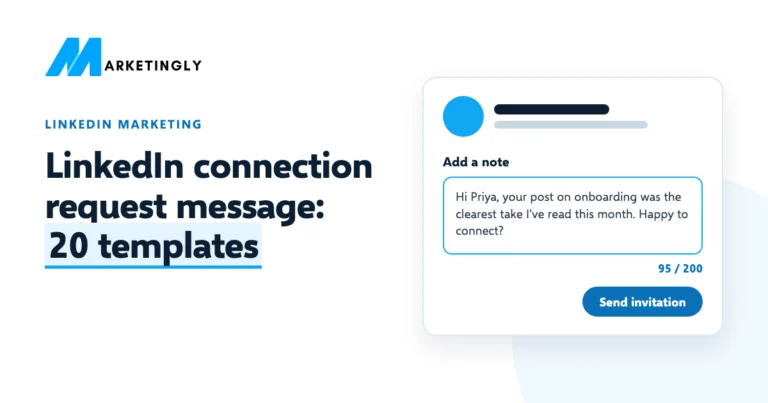
- Write a subject line (up to 200 characters) and your message (up to 2,000 characters), then send it.
You cannot send an InMail to members who have turned InMail off in their message preferences. If a member has Open Profile, a Premium feature, you can message them for free, without using a credit.
How to Write an InMail People Answer #
- Say why you are writing in the subject line. “Question about your post on hiring” beats “Hello”.
- Show you looked at their profile. Mention one specific thing: a post, a project or a change in their role.
- Ask for one small thing. A short reply or a 15-minute call, not a meeting next week and a demo.
- Keep it short. A few sentences that fit on a phone screen.
- Follow up once at most. If there is no answer, move on.
How to Stop Receiving InMail #
Anyone, including members with a free Basic account, can choose not to receive InMail. Go to Settings & Privacy, open your message preferences and turn off InMail messages from other members.
Questions About LinkedIn InMail #
Is InMail free on LinkedIn? #
Receiving InMail is free. Sending it needs a Premium plan or Sales Navigator, except to members with Open Profile, whom you can message for free.
What is the difference between InMail and a normal LinkedIn message? #
A normal message can only go to your connections and is free. An InMail can go to someone you are not connected to, uses a credit, and shows an InMail label in their inbox.
How many InMail credits do you get? #
It depends on your plan, and LinkedIn changes the numbers from time to time, so check your My Premium page for your current credits. Sales Navigator plans include 50 InMail credits a month.
Planning outreach on LinkedIn? Read whether LinkedIn Sales Navigator is worth it, or see our LinkedIn marketing service, which keeps outreach within LinkedIn’s rules.